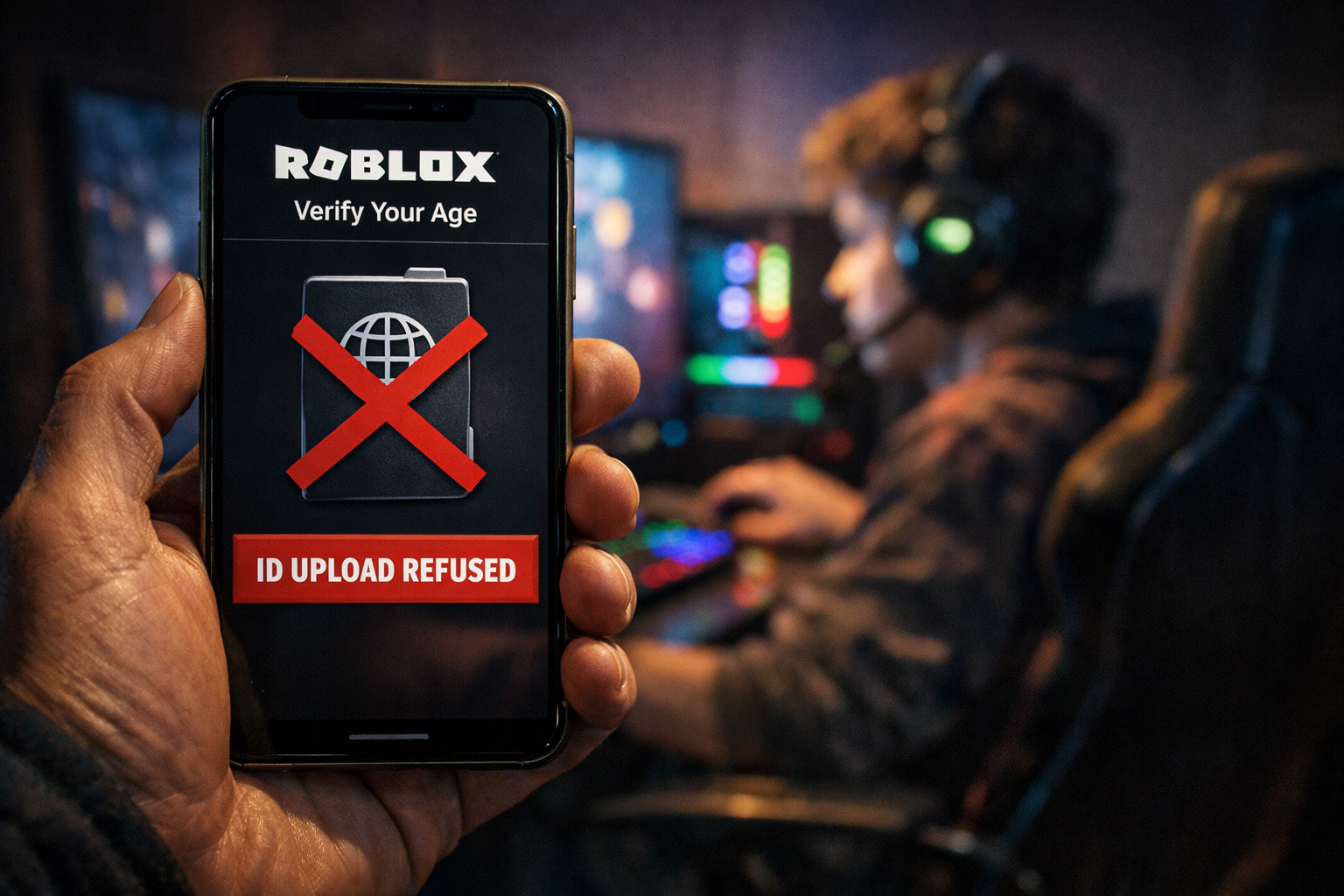
It started with a simple notification. My 14-year-old daughter ran into my home office, excited. “Dad, look! I verified my age with the camera and now I have Voice Chat!”
My engineer instincts kicked in immediately. Voice Chat? On Roblox?
I checked her profile. There it was, a small badge next to her username: 17+. Roblox’s AI facial estimation tool which uses the camera to guess your age had scanned her face and decided, incorrectly, that she was an adult.
Suddenly, her “kid-safe” game had unlocked:
- Spatial Voice Chat: Allowing her to talk to strangers in real-time.
- 17+ Experiences: Dating simulators, violent horror games, and “social hangouts” that are essentially bars for avatars.
I contacted support to fix it. Their solution? “Please upload a government-issued ID (Passport or Driver’s License) to correct the age.”
My answer was a hard NO.
I am a Network Engineer. I know that “deleted data” isn’t always deleted. I know that identity verification vendors get hacked (look at 23andMe or Okta). There is absolutely no way I am uploading a high-resolution scan of my minor daughter’s passport to a gaming company just to fix their AI’s mistake.
If you are in the same boat, or just terrified of what your kids are seeing on Roblox, here is my complete guide on Roblox Age Verification Safety and the “Zero Trust” strategy I used to secure her account
Part 1: The “Zero Trust” Configuration (Software Hardening)
Even if Roblox thinks your child is 40 years old, you can manually force the account to behave like they are 10. The secret is knowing which toggles actually matter.
Step 1: Set the “Root Password” (Parental PIN)
If you don’t do this, your child (or a bad actor who hacks their account) can undo everything in seconds.
- Go to Settings (Gear Icon) > Parental Controls.
- Enable Parent PIN.
- Create a 4-digit code that only you know.
- Pro Tip: Do not use your birth year or the front door code. They know those.
Step 2: Kill the “Spatial Voice”
This is the most dangerous feature on the platform. It allows unmoderated voice conversations with strangers.
- Go to Settings > Privacy.
- Toggle Microphone and Camera Input to OFF.
- Because you set the PIN in Step 1, this setting is now locked.
Step 3: Override Content Maturity
This is the fix for the “17+” error.
- Go to Parental Controls > Allowed Experiences.
- You will see options like All Ages, 9+, 13+, and 17+.
- Manually select 13+ (or 9+ if they are younger).
- The Result: Even though her profile says she is an adult, the system will block her from joining any game tagged as 17+. The “Dating Sims” disappear instantly.
Transparency Note: This article contains affiliate links. As an Amazon Associate, I earn from qualifying purchases at no extra cost to you. This helps support the blog.
Part 2: Why Software Isn’t Enough (Hardware Control)
Let’s be honest: Software fails. Passwords get guessed. Updates reset settings. As an engineer, I don’t rely on a single point of failure. I secure the infrastructure.
If you want to sleep well at night knowing your network is safe, you need hardware that acts as a “Digital Bouncer.”
Here are the 3 tools I use in my own home to keep my kids safe online.
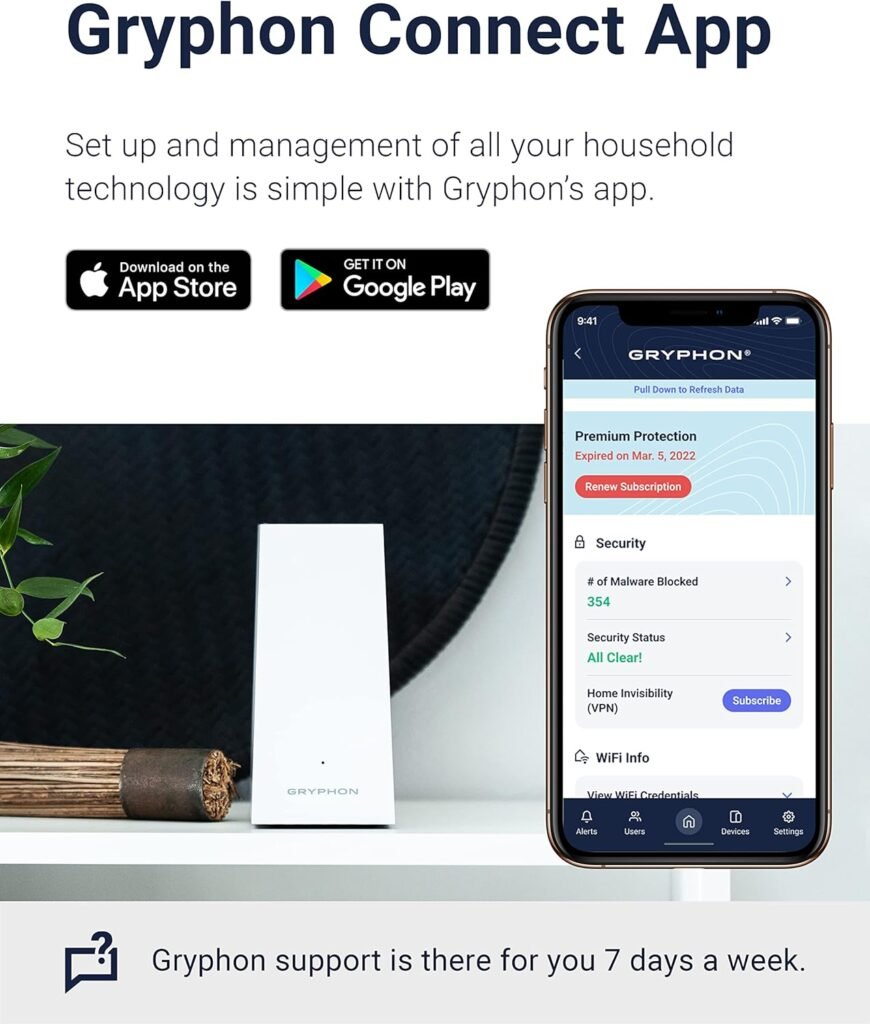
1. The “Digital Bouncer”: Gryphon AX Parental Control Router
Most routers are dumb; they just pass traffic. The Gryphon is smart. It was built specifically for families. It uses Deep Packet Inspection to look at the traffic before it reaches your child’s device.
- Why I love it: I can see exactly what is happening in real-time via the app. If a Roblox game tries to open a connection to a suspicious server, Gryphon kills it. It also forces Safe Search on every device in the house.
- The Feature: It has a “Request Access” feature. If my daughter needs to visit a new site for school, I get a notification on my phone to Approve or Deny.
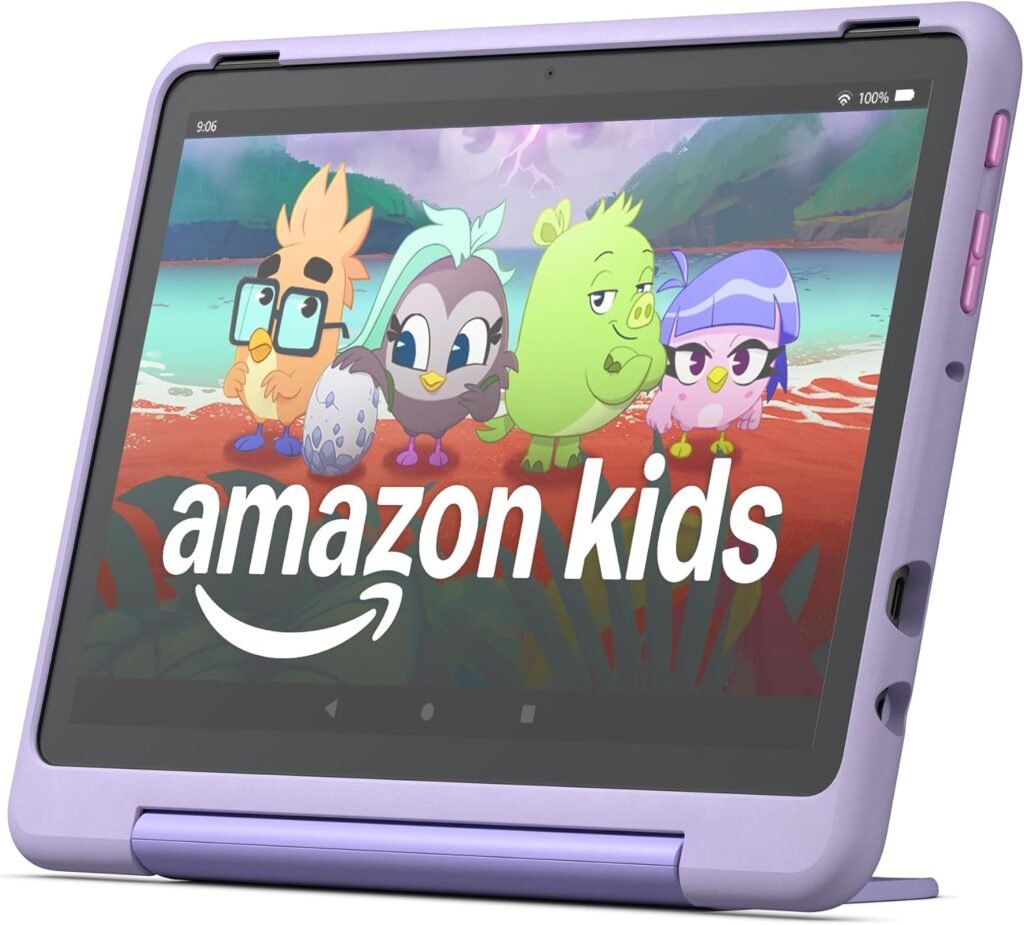
2. The “Walled Garden”: Amazon Fire HD 10 Kids Pro
A Windows PC or an old iPad is “too open.” A child can minimize Roblox and open a browser, Discord, or Telegram in seconds. The Fire HD 10 Kids Pro runs on Amazon Kids+, which is a “Walled Garden.”
- Why I love it: It operates on an “Allow List” basis. My daughter cannot install anything unless I approve it first. No hidden chat apps, no secret browsers. It’s just Roblox and the educational apps I chose.
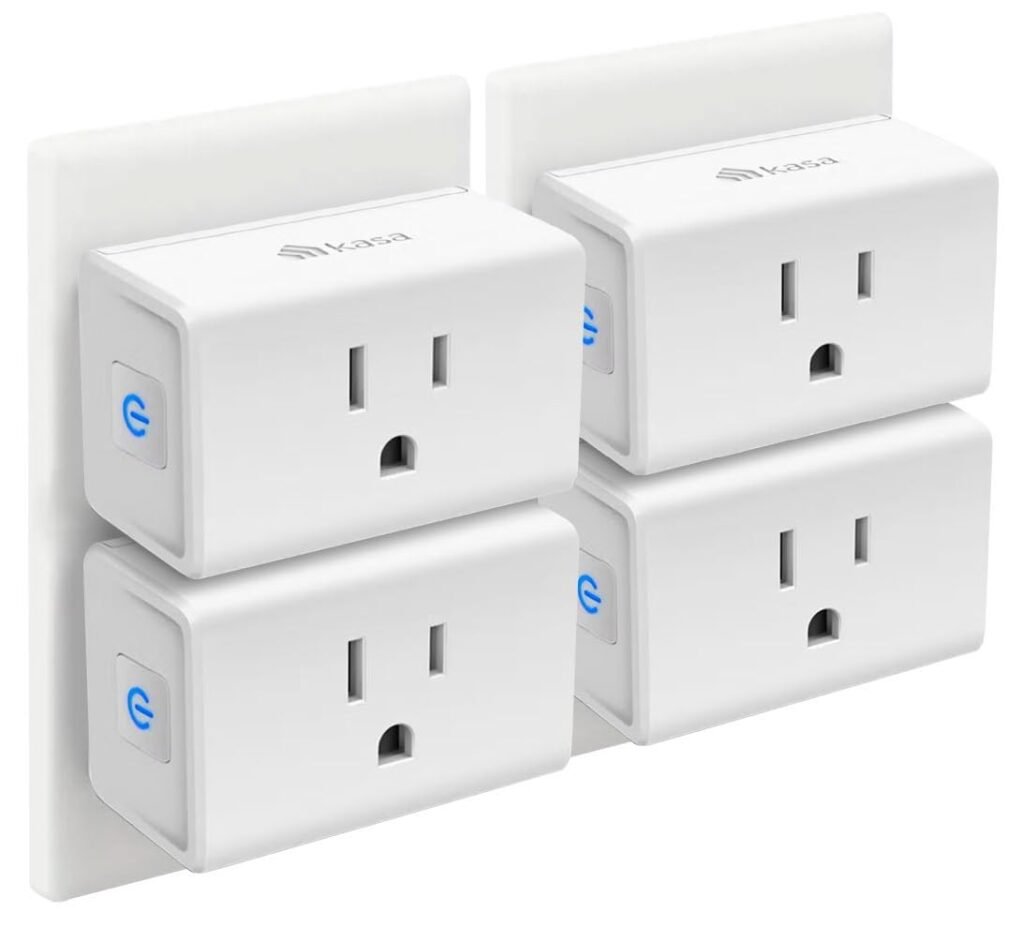
3. The “Kill Switch”: Kasa Smart Plug (by TP-Link)
We’ve all been there: “Turn off the Xbox, it’s dinner time!” followed by 20 minutes of ignoring you. I don’t argue anymore. I automate. I plugged the gaming PC and the Xbox into Kasa Smart Plugs.
- The Setup: I have a schedule set in the app: Power OFF at 9:00 PM.
- Why I love it: It’s not a punishment; it’s just physics. The power goes out, the screen goes black. No negotiation, no drama. It’s the ultimate authority.
Conclusion: Trust, but Verify
Roblox is not evil, but their AI is flawed, and their verification requirements are invasive. By refusing to upload your ID and taking control of the Network Layer (with a good router) and the Physical Layer (with smart plugs), you are being a responsible, modern parent.
Don’t let an algorithm decide what is safe for your child. You are the Admin.
Read More: