Years ago, whenever I had to travel out of town from Saturday to Sunday, I would set up a standard, non-WiFi automatic feeder for my dog and point a smart camera directly at it.
I thought I had a foolproof system. Until one weekend, I opened the camera app on my phone and watched in horror as the second meal simply failed to drop. The absolute anxiety of being miles away, staring at a screen, knowing your dog is hungry and you can’t do anything about it, is terrible.
That was the day I decided to upgrade to a Smart Wi-Fi Pet Feeder. I needed the peace of mind of a push notification on my phone confirming: “Success: 50g of food dispensed.”
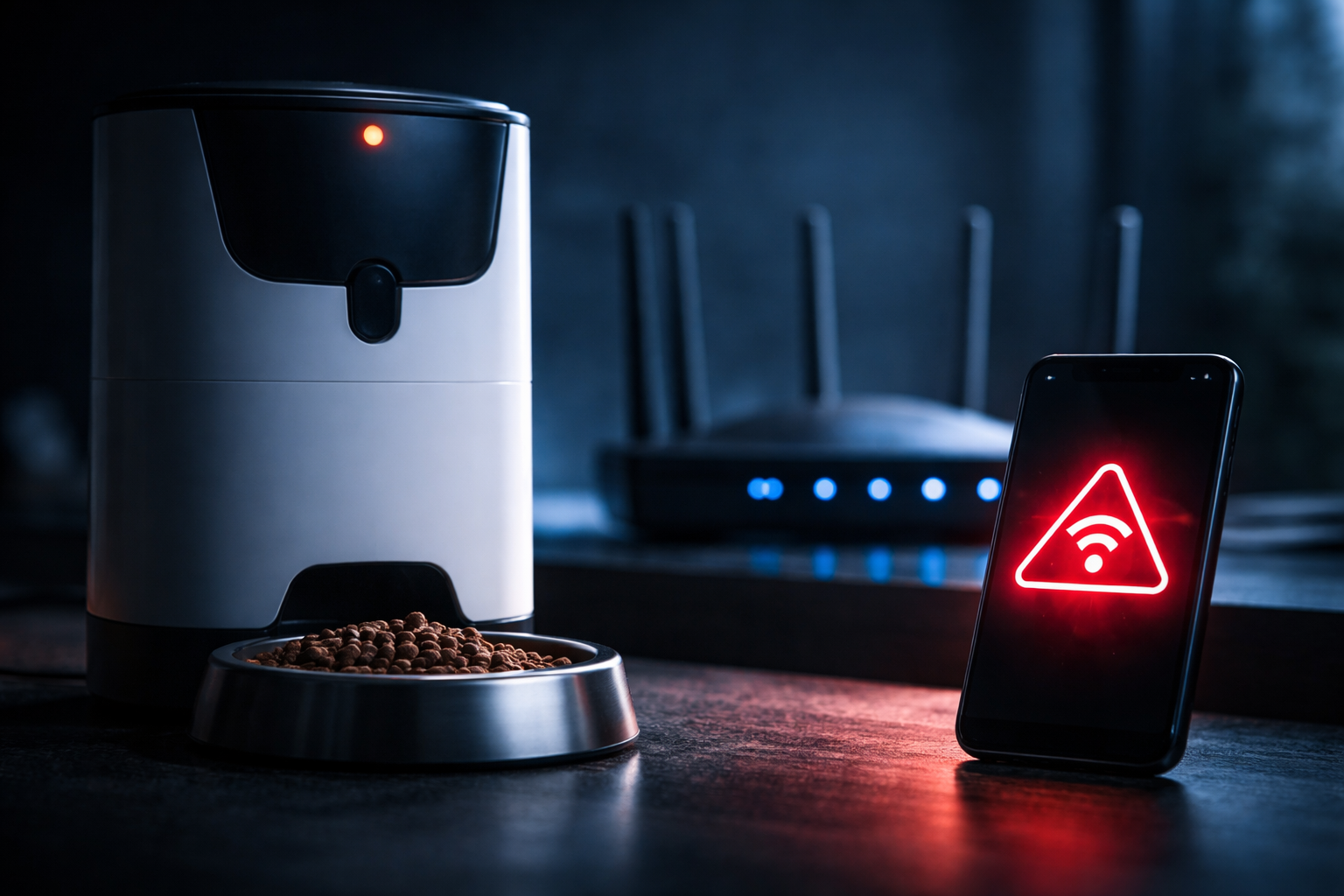
But here is the irony: upgrading to a smart feeder often introduces a brand new nightmare. You take it out of the box, download the app, and it flat-out refuses to connect to your home Wi-Fi. The app times out, the LED light blinks red, and you are staring at a frustrating smart feeder device offline error on your screen. You feel like you wasted your money.
If your pet feeder is stuck offline, don’t pack it up to return it to Amazon just yet. The feeder isn’t broken. The problem is actually your modern Wi-Fi router being a little too “smart” for its own good.
As someone who works with computer networks every day, I see this exact issue constantly. Here is the simple, 5-minute networking trick to force your smart feeder to connect, so you never have to worry about a missed meal again.
Transparency Note: This article contains affiliate links. As an Amazon Associate, I earn from qualifying purchases at no extra cost to you. This helps support the blog.
The Invisible Enemy: 2.4GHz vs. 5GHz
To fix the problem, you need to understand why it’s happening. It all comes down to a communication breakdown between your expensive router and your pet feeder.
Smart home gadgets (like pet feeders, water fountains, and smart plugs) use cheap, basic Wi-Fi chips that only operate on the 2.4GHz frequency. They use 2.4GHz because it travels further through walls, which is great for a feeder sitting in the corner of a kitchen.
The problem? You probably have a modern Mesh Wi-Fi system. These modern routers broadcast both 2.4GHz and the faster 5GHz frequencies under the exact same network name (SSID).
When you try to set up the feeder, your smartphone is connected to the fast 5GHz band. The app tries to pass the Wi-Fi password to the feeder, but the feeder (which only speaks 2.4GHz) gets confused. The router tries to force the feeder onto the 5GHz band, a process called Band Steering, and the connection completely fails, leaving your smart feeder device offline.
You don’t need to be an IT expert to bypass this. Here are the 3 easiest ways to fix it, starting with the simplest.
Fix #1: The “Walk Away” Trick (Easiest)
You don’t need to touch your router settings for this one. We are going to use physics to our advantage to beat the smart feeder device offline error.
The 5GHz Wi-Fi signal is very fast, but it has terrible range. The 2.4GHz signal is slower, but it travels much further.
- Plug your smart feeder into an outlet as far away from your Wi-Fi router as possible. (Take it to the backyard, the garage, or down the driveway).
- Take your smartphone with you.
- Because you are far away, your phone will naturally drop the weak 5GHz signal and switch to the strong 2.4GHz signal.
- Open the pet feeder app and run the setup process. It should connect instantly!
- Once it is successfully connected, you can unplug the feeder and move it back to your kitchen. It will remember the network and stay online.
Fix #2: The Hotspot Hack
If walking away didn’t work, we can trick the feeder using a second smartphone. You will need a spouse or friend’s phone for 5 minutes.
- Turn off the Wi-Fi on Phone A (your friend’s phone) and turn on its Mobile Hotspot.
- Crucial step: Change the Hotspot Name and Password to be exactly the same as your home Wi-Fi network.
- Unplug your actual home Wi-Fi router from the wall so it turns off completely.
- Use Phone B (your phone) to connect to the Hotspot.
- Open the pet feeder app and connect the feeder to the Hotspot. Since hotspots broadcast in 2.4GHz by default, it will connect immediately.
- Turn off the Hotspot and plug your home Wi-Fi router back into the wall. The feeder will automatically grab your home network thinking it’s the same connection.
Fix #3: The IT Method (Splitting the Bands)
If you have a traditional router provided by your ISP, the most permanent fix is to separate your Wi-Fi networks.
- Log into your router’s admin panel (usually by typing
192.168.1.1into your browser). - Look for the Wireless Settings.
- Turn off “Band Steering” or “Smart Connect”.
- Rename your networks so they are separate: for example,
Home_Network_2GandHome_Network_5G. - Connect your phone to the
2Gnetwork, setup the feeder, and you are done.
(If your router interface looks confusing, or your internet is constantly dropping, it might be time for an upgrade. I highly recommend the TP-Link AX3000 for a hassle-free setup that handles smart home gadgets beautifully. You can also read my guide on fixing slow internet at night for more network optimization tips).
The Engineer’s Golden Rule: Isolate Your Pet Tech
Once your smart feeder is happily dispensing food, there is one last step.
These smart home devices are incredibly convenient, but they aren’t known for their high-end cybersecurity. You should never leave a cheap smart gadget on the exact same Wi-Fi network that you use to do your online banking or remote work.
Go into your router app and move your pet feeder to the Guest Network. This gives the feeder internet access to drop the food, but blocks it from talking to your personal laptops and phones.
Recommended Smart Feeders That Actually Work
If you are still struggling and think your hardware is actually fried, here are the two smart feeders I trust the most when I’m pet sitting or traveling:
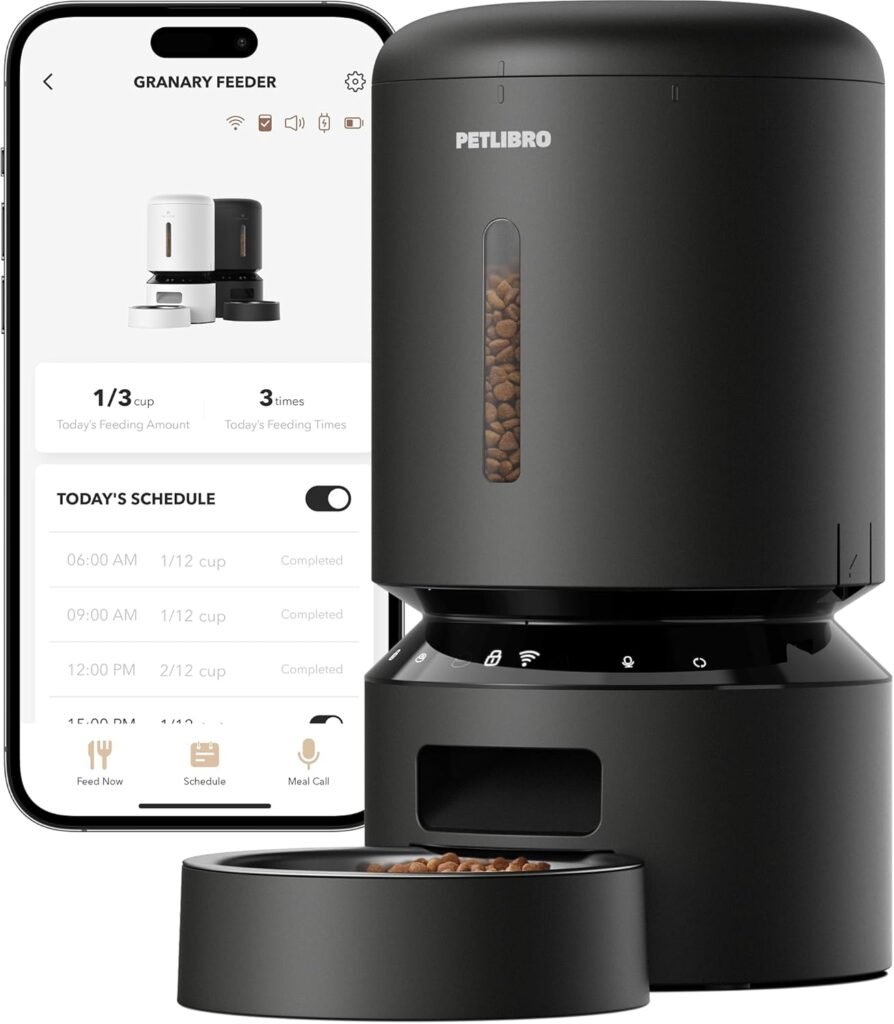
PETLIBRO Automatic Cat & Dog Feeder:
The connection process is usually much smoother, and the hardware is incredibly reliable.
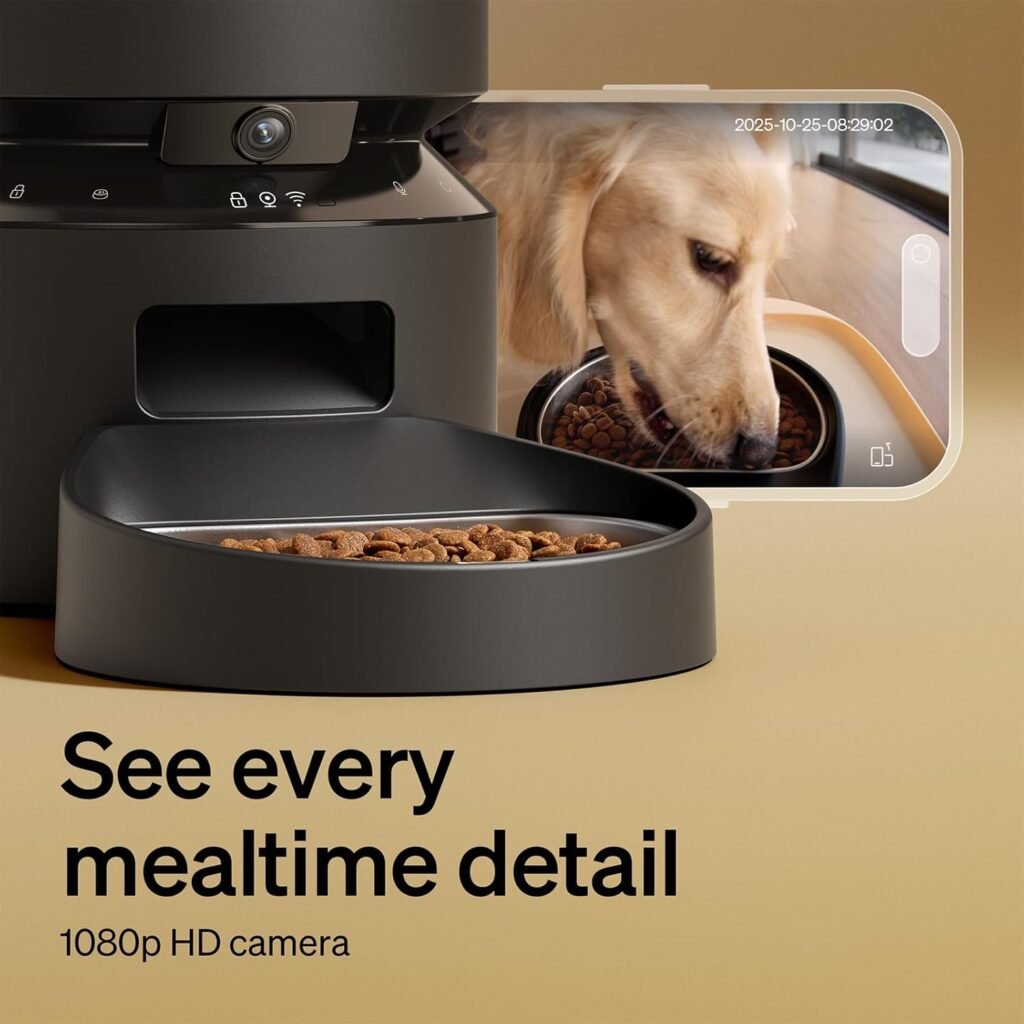
PETLIBRO Granary with Camera:
If you want the ultimate peace of mind of seeing the food drop while you are away, this is the gold standard.
Never let a Wi-Fi glitch leave you in a panic again. Take control of your network, secure your perimeter, and enjoy your time away from home knowing your best friend is well-fed.
Check the related articles: